



How to Edit and Share Videos with Closed Captions (Captions Made Easy pt. 2)

If you missed our previous Blog posts on this topic, Check them out:
Closing The Closed Caption Divide
How to Setup Closed Captions for Live Streams with iCap (Captions Made Easy pt.1)
Now that you have discovered the importance of accessibility in the live streaming world and how to setup closed captions in live streams; let’s talk about how to edit a video in order to enable closed captions for your exports. Also, let’s go over how to upload your exports with closed captions to video sharing platforms such as YouTube, Vimeo, Facebook, LinkedIn, and Twitter.
How to Post Production
(Adobe Premiere)
After your live stream has ended; your disk recorder, we use the Blackmagic Hyperdeck Studio, saves your Program record as a (.MOV) file along with a (.MCC) file for the closed captions. Import both of these files into your video editing software, such as Adobe Premiere. Drag the video file into the timeline and then drag the (.MCC) file on top. If the captions are not visible in the Program window, select the Settings Icon shaped as a wrench tool located next to the Playback Resolution selection. Click Closed Captions Display and select Enable. Then Click Settings under Enable; make sure the standard is set to CEA-608.
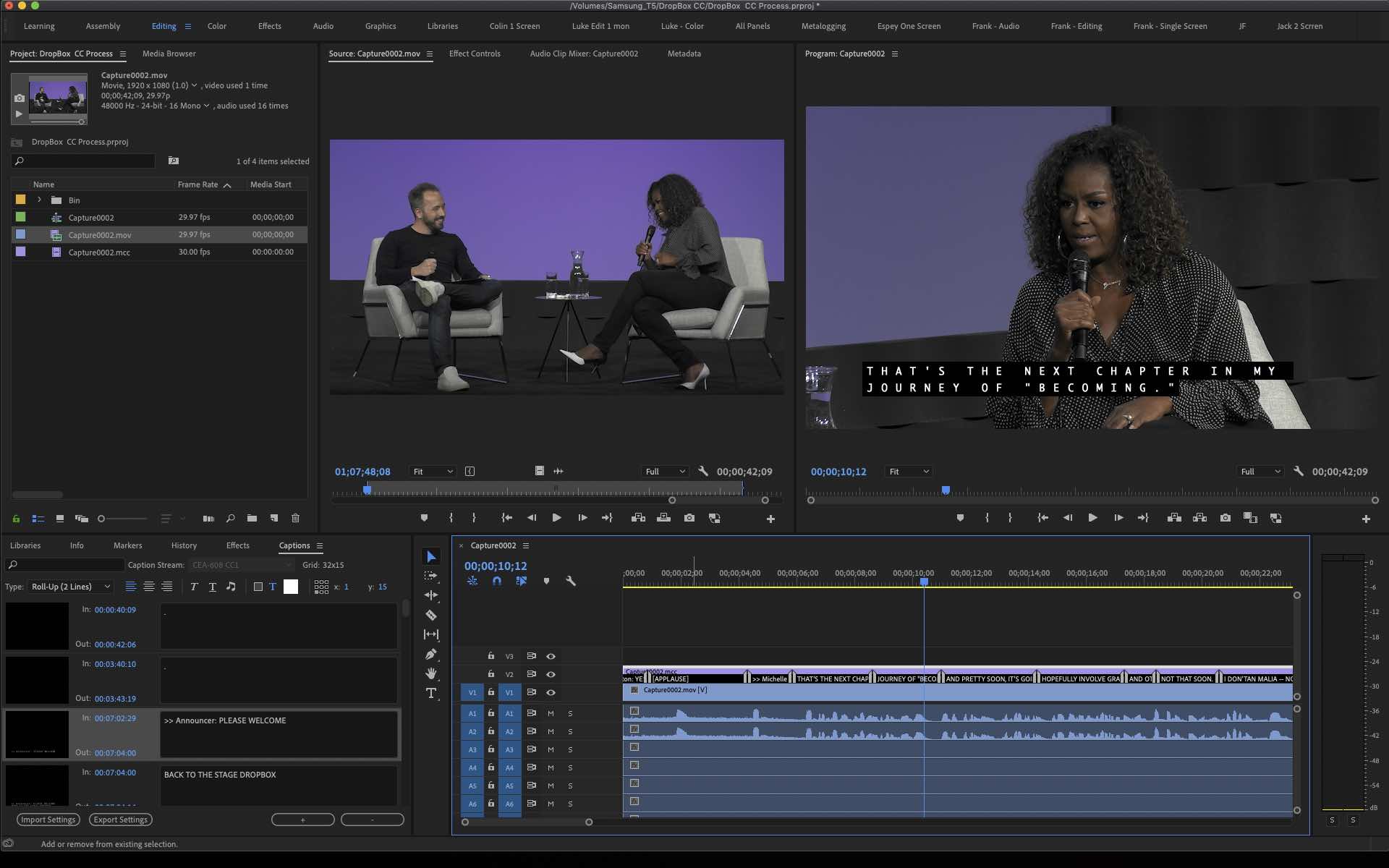
Ensure that the Captions are in sync with the dialogue in the timeline, adjust as needed. Any edits can be made to the Captions by double clicking the specific dialogue box which opens the Captions Window in Adobe Premiere. The Caption Stream should be set to CEA-608 CC1. Any adjustments to the text format can be made from here as well as editing the captions text.
Once you are satisfied with the captions and you are ready for export, select File > Export > Media. Configure your desired export settings and then select Captions. For Export Options select Create Side Card File. For File Format, Select SubRip Subtitle Format (.SRT). Now you should be ready to export.
Video-Sharing Platforms | How to?
Now that you have exported your project, you should have two files. One video file (.mp4 or .mov etc.) and one text file (.srt). How to put them together.
How to work with YouTube
When uploading to YouTube, select upload videos. Drag and drop your video to the YouTube window to upload. Configure your video as desired (Name, Description, Thumbnail, etc.) and then scroll down to more options and locate: Language, subtitles, and closed captions (CC). Select the video Language, then click Upload Subtitle/CC, select With Timing and upload the (.srt) file. When your upload is complete, preview the video and make sure that the captions are working.


How to work with Vimeo
Once you started uploading your video file to vimeo, in the upload settings locate the Distribution tab and select subtitles. Select the video language, select captions as the Type, and then upload the (.srt) file. Preview your video to make sure captions are working properly.
How to work with Facebook
When you begin uploading your video it may be convenient to make the post private for the time being. Select Post and then go to your page’s timeline where you should find your video processing. If you don’t see your video, refresh the page or go to your Photos > Albums > Videos. Select Edit Video and under Captions you can upload your (.srt) file. Your (.srt) file MUST be saved as (filename.en_US.srt). (en_US) is an embedded language selection code for (English_United States). Once you create your title and video description you should be ready to post publicly.


How to work with Twitter
Twitter does not give the option to upload a (.srt) file for closed captions so one way to post closed captioned videos to Twitter is through LinkedIn. On LinkedIn, you have to start a post, upload the video, and click edit. In the video settings, you can upload your (.srt) file. To share to Twitter click the viewing selection, select Anyone + Twitter.
