



How to Setup Closed Captions for Live Streams with iCap (Captions Made Easy pt.1)
Live Streaming with Closed Captions today is a signature of professional broadcasting and is a must for inclusive communications. For your next live stream, consider how providing closed captions allows your content to be more accessible to a broader audience. When you exclude a community of individuals who have hearing impairments, you exclude their experiences from the over all conversation. Take a moment to see why inclusion and accessibility is important in the world of live streaming by checking out our blog Closing The Closed Caption Divide.
Repertoire Productions makes how to live stream with Closed Captions straightforward and easy by way of the HD492 iCap™ Encoder.
Setup 1 (Wiring)
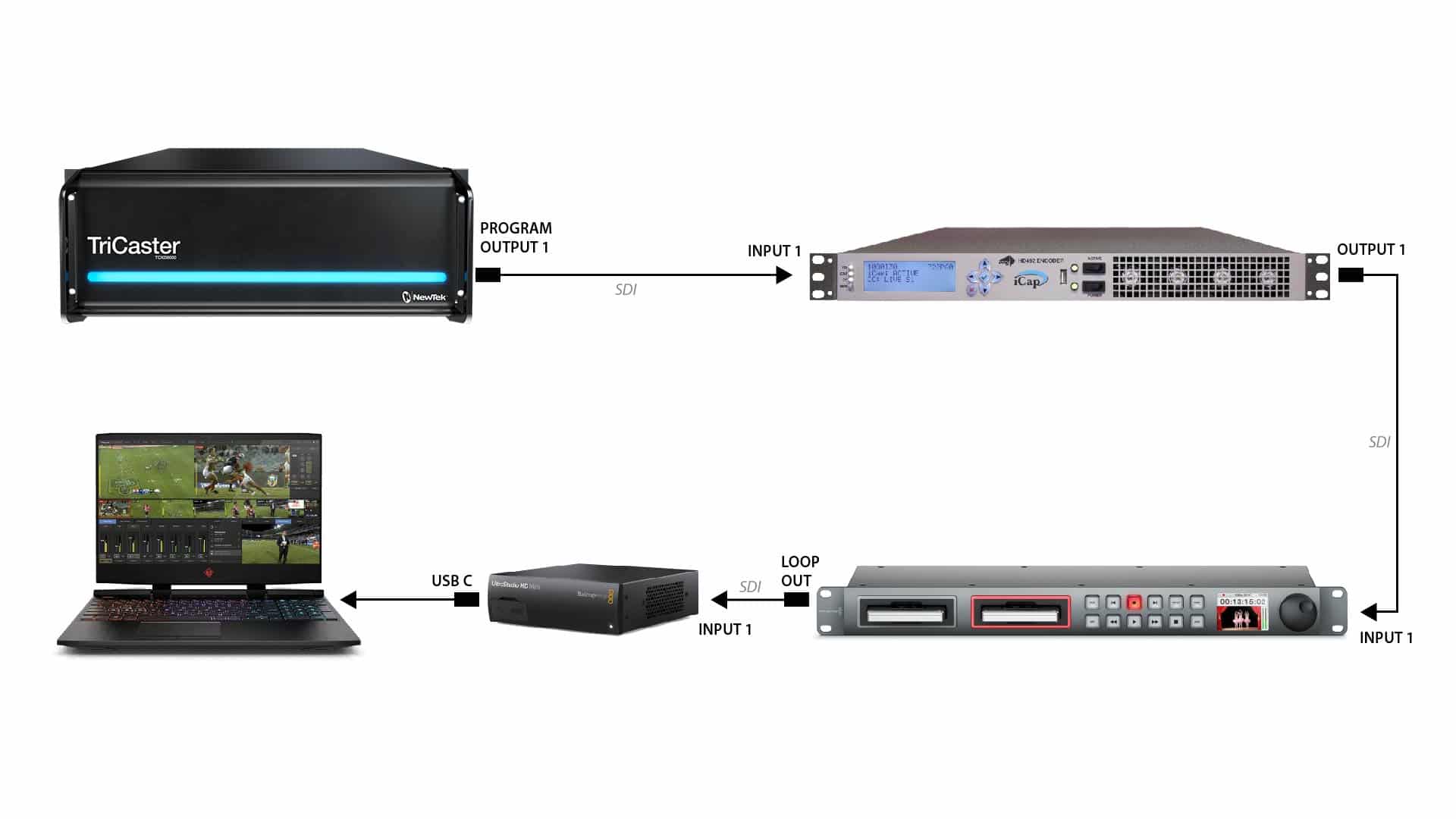
Proper setup with the iCap encoder is particular yet fairly simple. Once you are finished setting up your Video switcher, we use the Newtek Tricaster 8000, identify your Program output. Route an SDI cable from your Program Output 1 to your iCap encoders Input 1.
For recording purposes you want to ensure that you route an SDI cable from your iCap Encoder’s Output 1 to your recording device’s input 1; we use the Blackmagic Hyperdeck Studio (Disk Recorder).
From here you must connect to your capture card, we are using the Blackmagic Ultrastudio HD which converts signal to your computer that will operate as an encoder. You can do this either two ways.
Option 1: By coming out of the Hyperdeck Record’s Loop Out with an SDI cable, Connect to your Capture Card’s input 1.
-or-
Option 2: By coming out of the iCap Output 2 with an SDI cable, connect to your Capture Card’s input 1.
For this specific setup we prefer Option 1 for a straight and seamless signal flow. Next, connect your Capture Card to your Encoder with the proper cord, in this case we need to use a USB-C cable.
Setup 2 (Encoder)
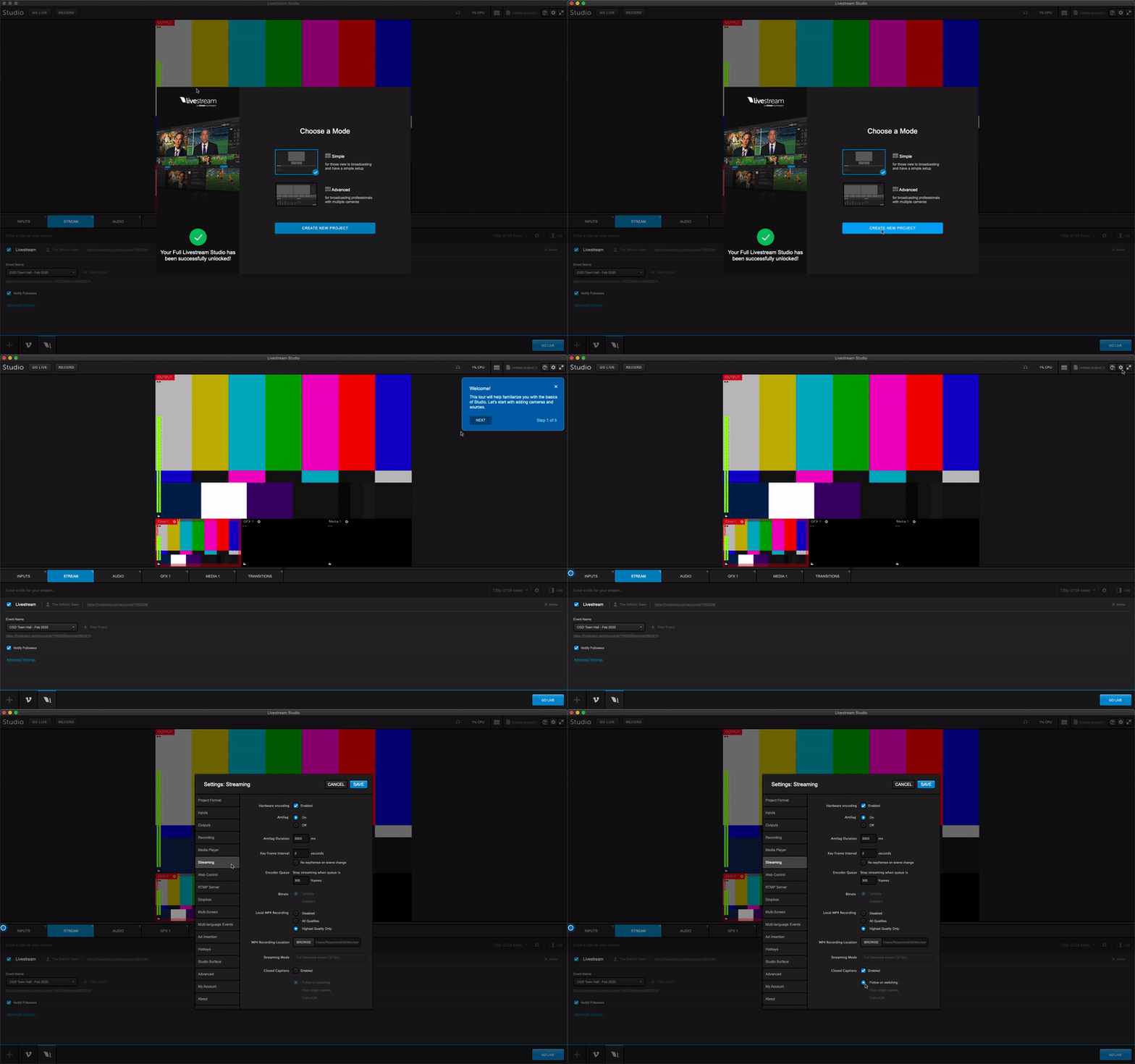
Now that you’re all connected, let’s set up your encoding software. On your computer, launch Livestream Studio for the best compatibility with enabling closed captions. Be sure to be in Simple View Mode by toggling the workspace icon in the top right hand corner, next to the project name.
Click the settings gear in the top right hand corner, select Streaming, then enable Closed Captions. Be sure to select Follow on Switching. Save to exit settings.
Next, Click Inputs. Select the Cam 1 setting gear, Scroll down to select Closed Captions then Enable Closed Captions. If already enabled, deselect and reselect enable for it to register. Under the Closed Captions Channel, select DTVCC Service 1 (English). If it does not say English, deselect and reselect enable Closed Captions for it to process.
Setup 3 (iCap Test Captions)
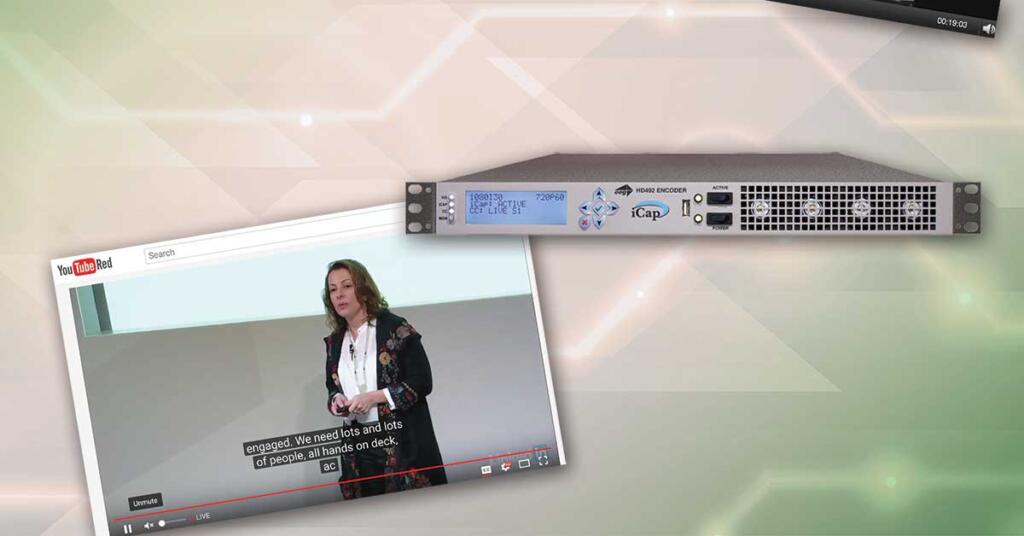
On the iCap Encoder, Select The Check Mark to access the Menu. Locate and select Utilities by using the up and down arrows. Locate and select Test Captions and then select Enable. Select On then exit the menu using the red “X”.
Go Live on Livestream Studio to preview Test Captions. Closed Captions are only viewable while viewing the Livestream. It’s often helpful has have a separate computer or device designated for testing and viewing the live stream.
For further information on how to video edit in order to enable closed captions for your exports and how to upload your exports to video sharing platforms with closed captions, look out for our next Blog post: How to Edit and Share Videos with Closed Captions (Captions Made Easy pt. 2).
