



3 Awesome ways to Decimate Your Next Show
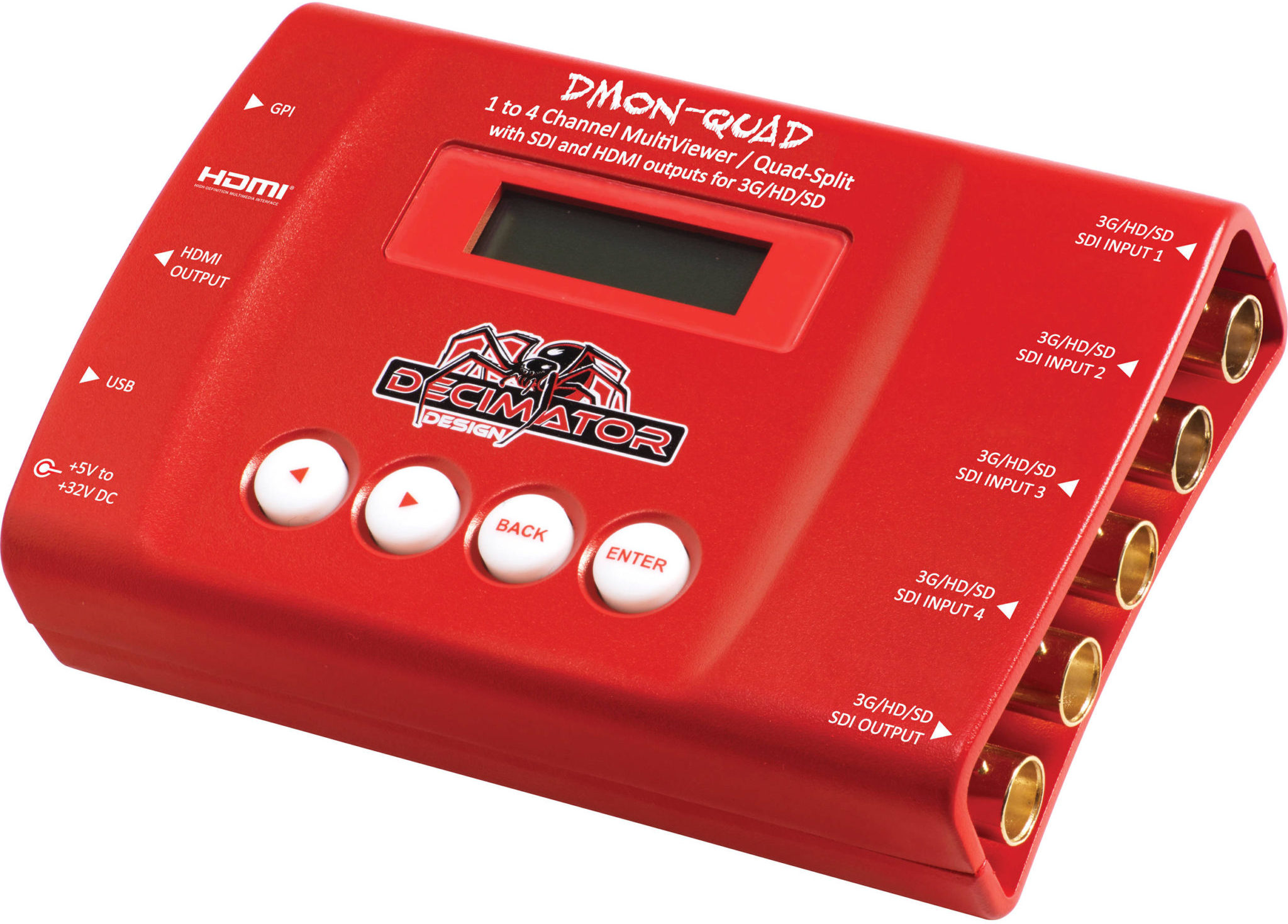
Covered in depth for this edition of “Run of Show” (our inspirational and informative blog on all things production) we are looking at the humble Decimator. Manufactured by the good folks at Decimator Design, these handy little devices are the AV equivalent of a multi-tool for video engineers everywhere. Even so, many people find the menus hard to navigate and the product difficult to use. That is why we figured a Decimator blog might be useful. Today we will be covering the Decimator MD-HX: What it does and most importantly how to use it.
The what:
Decimator MD-HX Most notable feature is the ability to receive and output any video signal from 480i to 1080 at 60 progressive frames per second (full 3G). Retails for around $300. Does 95% of what the Barco Image Pro does at less than a 1/10 of the cost.
The why:
Most consumer electronics use HDMI to output video with embedded audio. Most professional video devices use SDI. Additionally, in theater or on a film shoot, you may need to send audio and video several hundred feet away. HDMI signal will decay after around 30′ where as SDI can get you around 300′. You need something to bridge the gap, which is where the Decimator comes in.
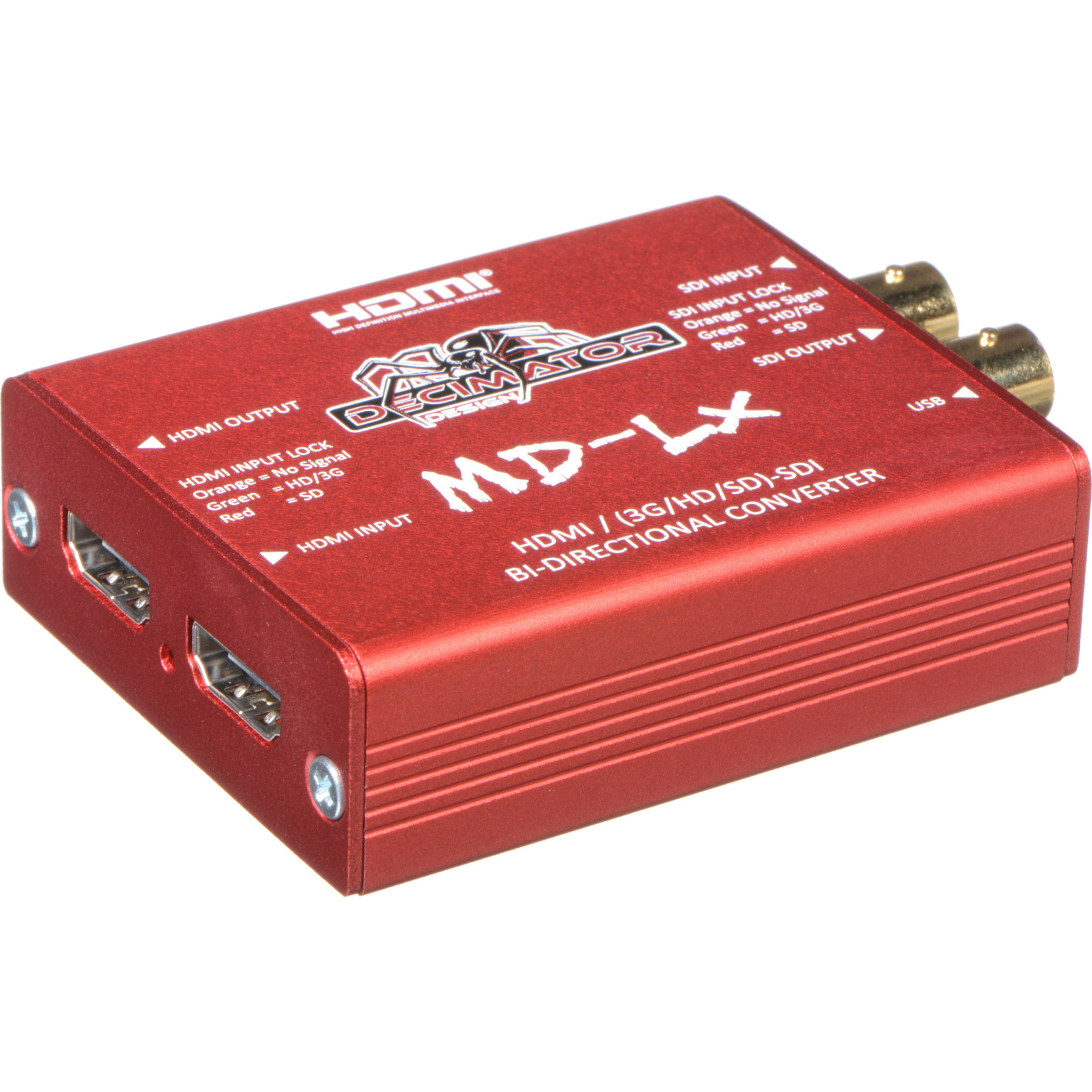
The HX can receive HDMI from a laptop on your tech table and convert it to SDI to run the signal somewhere else further away, such as a projector rigged to truss up in the ceiling or a confidence monitor in front of the stage. If all you need to do is convert from HDMI to SDI, or visa versa, then you can plug in a MD-LX and call it a day. Read up on other Decimator products in this fine blog by the good folks at DVE Store. But if you need to scale or scan convert, you will want an HX. Here are 3 reasons why you may need to do this:
- You need to send one type of signal to your screen and another to your switcher.
- The 1080 6op video coming off your 3G SDI screen switcher and going to the downstage monitor is flickering or not coming through because the cables are too long to send the full rez video.
- You want to plug an SDI feed into a decimator and get HDMI out and you want to preserve the embedded audio.
For these exercises, you will need one device outputting video via HDMI, another device to receive your video via SDI, a camera with audio in and SDI out and of course the Decimator MD-LX.For these examples, I will be using my work computer (an Imac) and our TV Logic broadcast monitor with SDI in.
Decimator Signalflow Scenario 1:
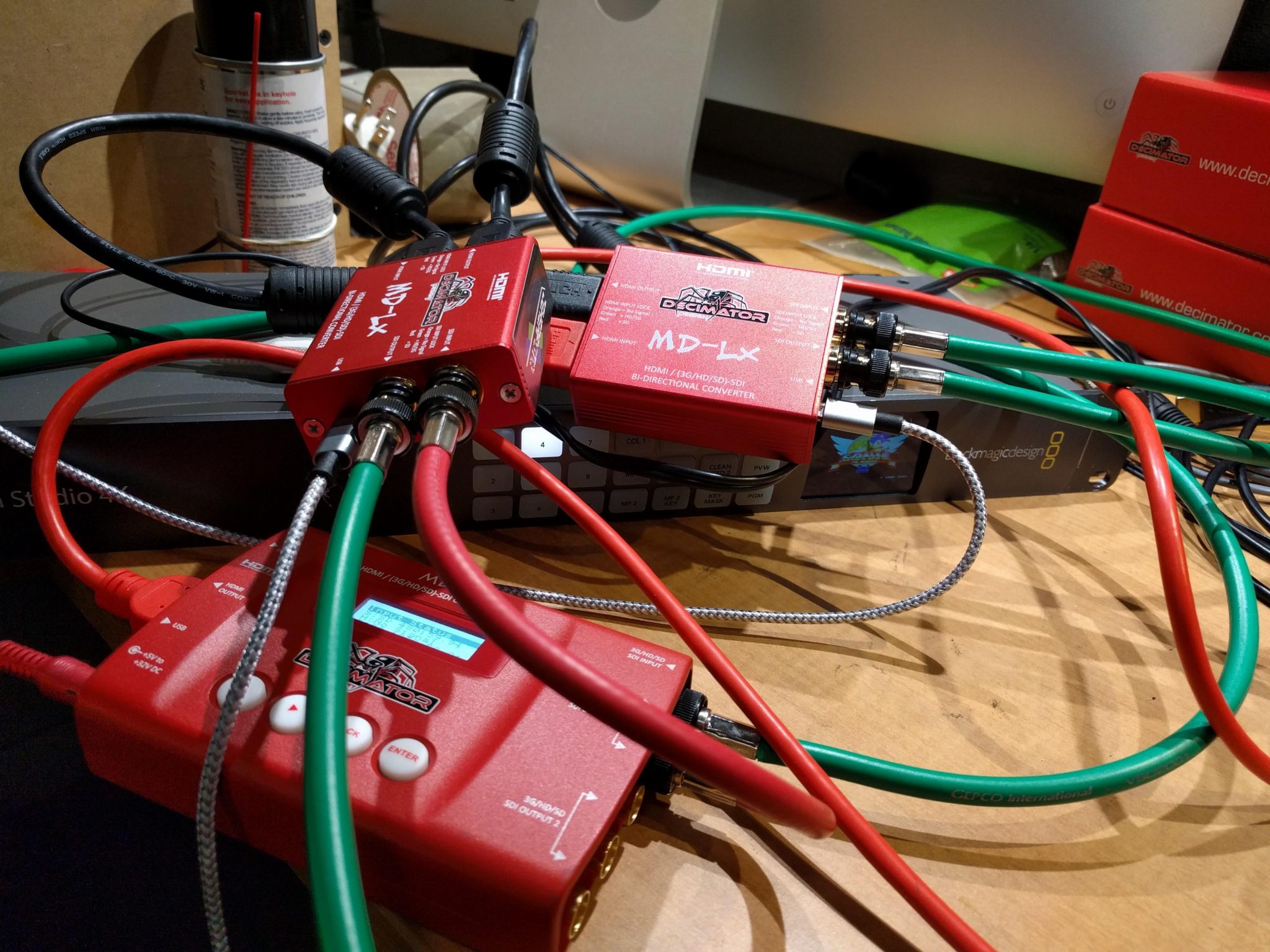
Most computers put out 60 hertz, via HDMI. Many broadcast switchers don’t have HDMI inputs, and 60p video is not broadcast standard as this is new tech that hasn’t achieved universal adoption yet. By adding a Decimator HX you can take one output off your laptop and send it to your projector or video wall in native 60 fps, and take another output, run it through the decimator and send your switch via SDI at 29.97p, the broadcast standard for all NTSC video.
Plug the computer into the HDMI input with an HDMI cable. Plug the SDI cable into your source, in this case a monitor, and into output 3 or 4 in the Decimator. Then go to Control>SDI out Source>Use the left and right arrows until the display says SDI Out Source is Scaler.
Go into scaling menu>output format and push enter. Now use the left and right arrows to change the resolution until it reads 1080 29.97p. Push push back till you are at the top of the menu to ensure you don’t change any of the settings.
Finally, go back into the control menu. Hit enter and toggle through the menus until you come across DUC source. DUC source tells the device which input you want to apply the scaler to. For this scenario, we want the DUC source to be HDMI.
The HX has 2 pairs of SDI outputs that can be configured as loop through on one and two (whatever is plugged into the HDMI is sent natively out through SDI one and two) while outputs three and four always send the scaled output you assigned to them. You can also have all 4 outputs sending the scaled video to turn it into a program DA!
And that’s it! You are now setup to send video to your extended desktop (or any other HDMI display) in the native resolution and refresh rate, while also sending scan converted footage down an SDI line in the universal broadcast standard format for professional HD-SDI devices.
Scenario 2 Video Engineering:
With SDI runs over 100′, especially if you are barreling together cables, you always run the risk of drop outs. Less signal coming through the line means more chance that the signal won’t reach the destination or have intermittent interference. So you could take your 60p signal, change it to 720 60p and send that instead. By the magic of signal flow, your picture is now coming through loud and clear. And since the DSM is typically a smaller screen, and only the presenter can see it anyways, no one is likely to complain about the reduction in quality. Here’s how to do it.
Plug your GFX feed via SDI out into the Decimator SDI in. Then go to Right Arrow>Control Control>Enter>SDI out Source>Enter>Use the left/right arrows until the display says SDI Out Source is Scaler. Hit back till you are back at controls.
Toggle right until you get to scaling. The hit Enter>output format and push enter>use the left and right arrows to change the resolution until it reads 720p 59.94. Push push back till you are at the top of the menu to ensure you don’t change any of the settings.
Finally, go back into the control menu. Hit enter and toggle through the menus until you come across DUC source. Hit Enter until DUC source reads SDI IN. Go back to control and for best practice, arrow over till you’re back in input status. You should now be able to receive your 1080p 60, downscaled to 720 video much further away, using the same cables. Decimator saves the day, yet again!
Decimator Video Engineering Scenario 3:
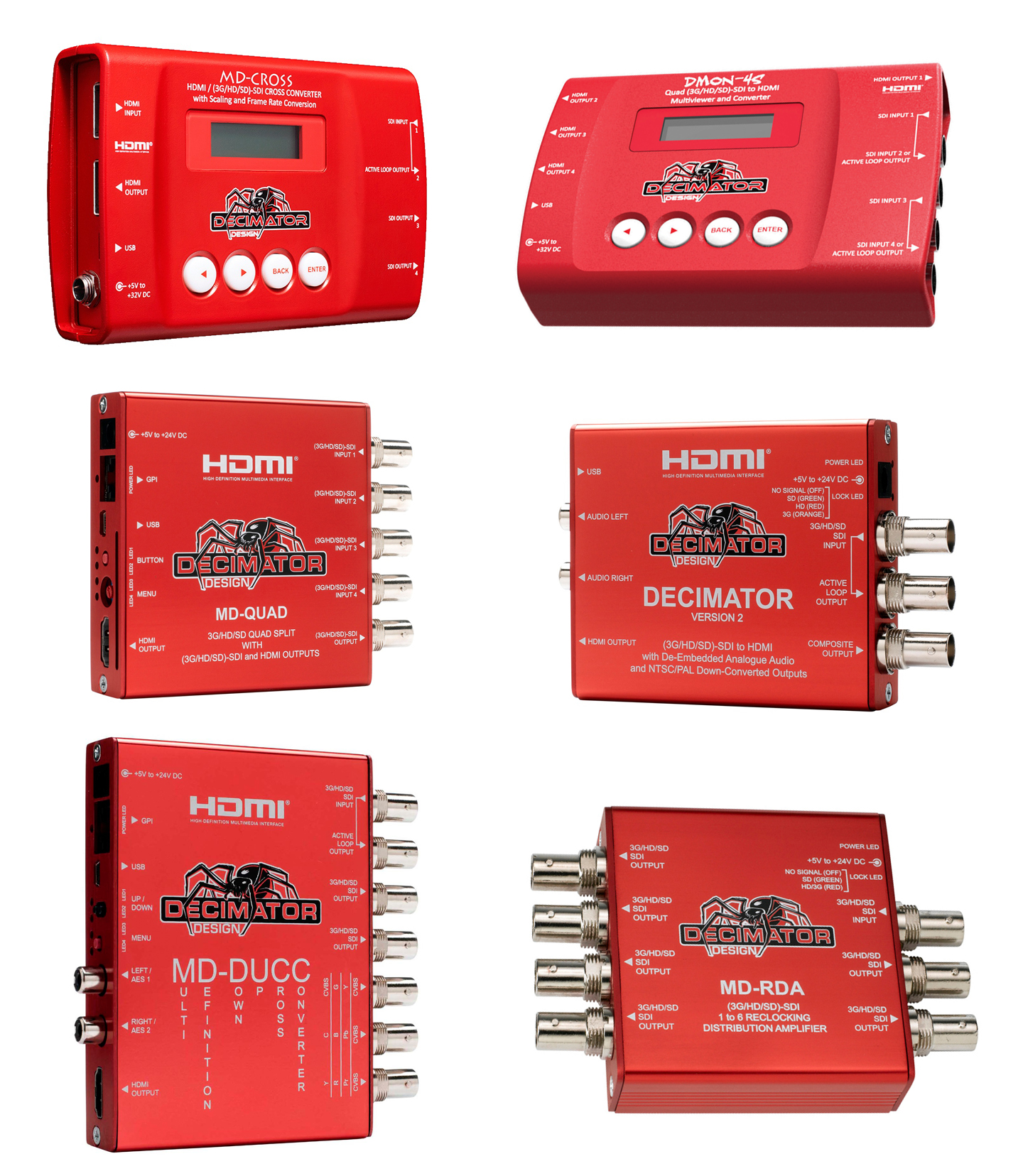
An example of when you may need to do this is if the client asks you to provide a live feed of your multicam switch for those watching in another room with the live sound.

Plug the program output from your switcher into the SDI input of your HX. Then, Right Arrow>Control Control>Enter>SDI out Source>Enter>Use the left/right arrows until the display says SDI Out Source is SDI in.
Plug the TV into the HDMI out from a second Decimator. Plug the SDI feed into the SDI in. Go to Control>Enter>Right Arrow>HDMI Source>SDI IN. If you need to scale the video, you would set the DUC source to SDI and the HDMI source as scaler. You should now have video, with audio ready to watch.
Plug your GFX feed via SDI out into the Decimator SDI in. Then go to Right Arrow>Control Control>Enter>SDI out Source>Enter>Use the left/right arrows until the display says SDI Out Source is Scaler. Hit back till you are back at controls.
Toggle right until you get to scaling. The hit Enter>output format and push enter>use the left and right arrows to change the resolution until it reads 720p 59.94. Push push back till you are at the top of the menu to ensure you don’t change any of the settings.
Finally, go back into the control menu. Hit enter and toggle through the menus until you come across DUC source. Hit Enter until DUC source reads SDI IN. Go back to control and for best practice, arrow over till you’re back in input status. You should now be able to receive your 1080p 60, downscaled to 720 video much further away, using the same cables. Decimator saves the day, yet again!
Thanks Decimator By Design
We hope this short tutorial has been helpful. Even experienced video engineers sometimes get thrown off course when forced to deal with the non-intuitive menu interface and the limited amount of physical buttons and readouts on the Decimator. However, the cost/benefit analysis makes them well worth learning. It’s all about delighting the next big potential client. And having a couple multis in your tool kit never hurts. As always, if you want to talk shop email us at info@repertoireproductions.com or stop by repetoireproductions.com to see what else we have been doing-other than setting up Decimators.

How Will the Return of Sports affect the Rest of the Live Event Industry in 2020 and beyond
How will the return of sports affect the rest of the live event industry? Let’s take a look at which [...]

Elevate Your Occasion: Why Choose Repertoire Production for Live Events and AV Services
Elevate Your Occasion: Why Choose Repertoire Production for Live Events and AV Services In today's fast-paced world, live events [...]
San Francisco: Why Rent a Video Wall Instead of a Projector for Your Next Event
Why Rent a Video Wall Instead of a Projector for Your Next San Francisco Event When planning an event [...]
How to Engage Audiences and Build Community Through Streaming
How to Engage Audiences and Build Community Through Streaming: A Comprehensive Guide In the era of digital transformation, engaging audiences [...]

Strategies for Success in the World of Silicon Valley Live Streaming
Strategies for Success in the World of Silicon Valley Live Streaming The world of Silicon Valley live streaming is a [...]
Create a Wow Experience at Your Corporate Event With LED Wall Magic
Create a Wow Experience at Your Corporate Event With LED Wall Magic Are you looking to make your next corporate [...]
Why Rent A Video Wall instead of a Projector at your Next San Francisco Event (10x brighter, more modular and versatile, no shadows)
Why Rent a Video Wall Instead of a Projector for Your Next San Francisco Event When planning an event in [...]
